Using the Image Studio
Written By Pollution
Last updated 9 months ago
Using the Image Studio
The Image Studio is your all-in-one hub for creating, editing, and combining artwork for your games. You can access it anytime from the main navigation bar by clicking Image Studio on the left side of the screen.
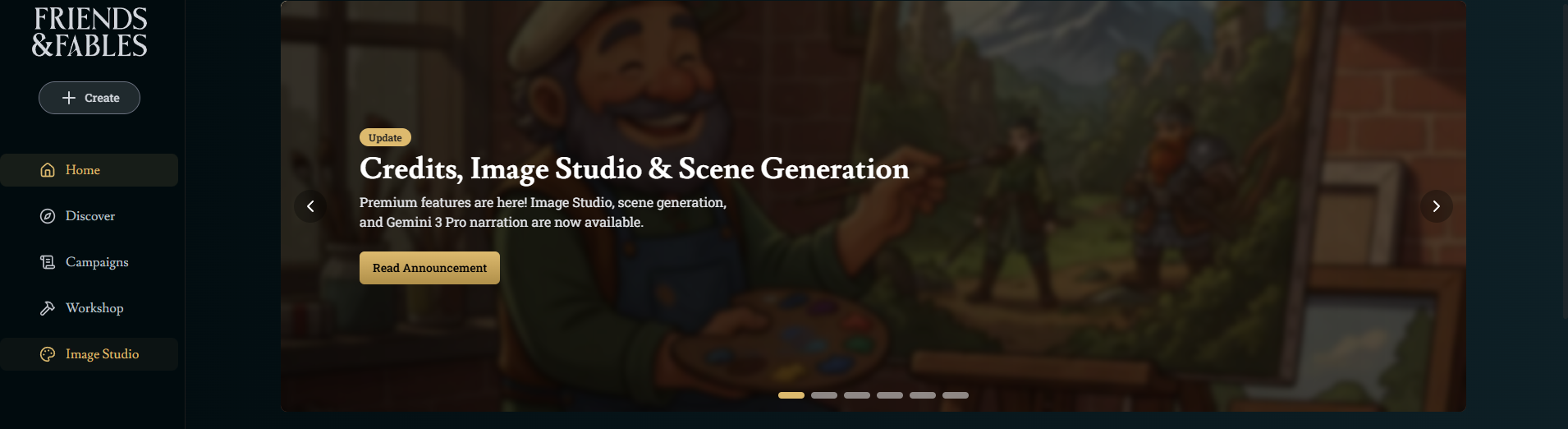
Inside the Image Studio, you’ll find two sections:
Create (with three tabs: Create, Edit, Combine)
Gallery (your library of all generated images)
Use the Image Studio to create world art, character portraits, maps, item art, cover illustrations, concept pieces, and anything else you want for your campaign.
Quality of Life Updates
You can start more generations while one is still generating
Aspect ratio pickers are now on image-to-image tabs
The model picker remembers the last model you used
Create Mode
Create (Text-to-Image)
This is the simplest and most flexible way to generate art.
All you need to do is:
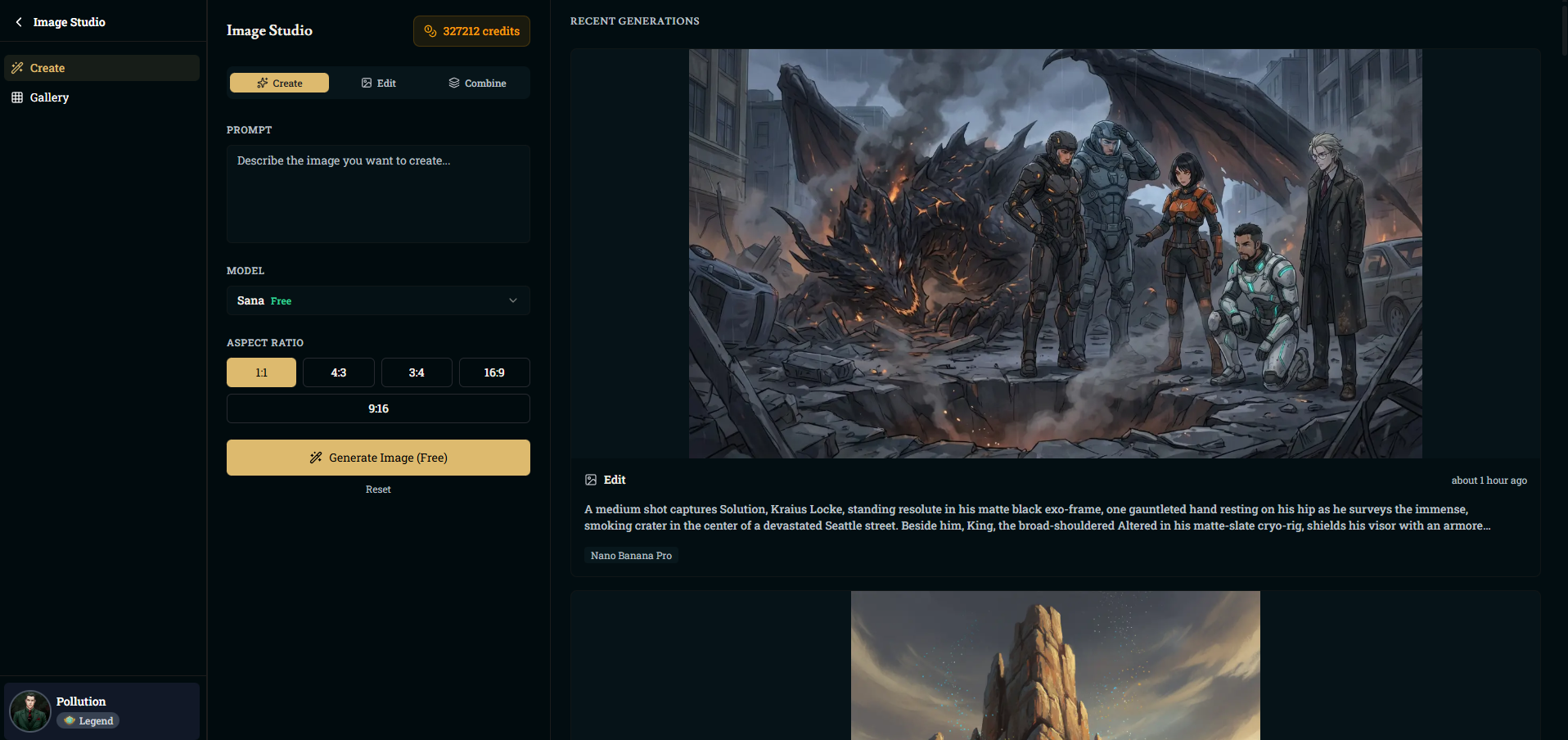
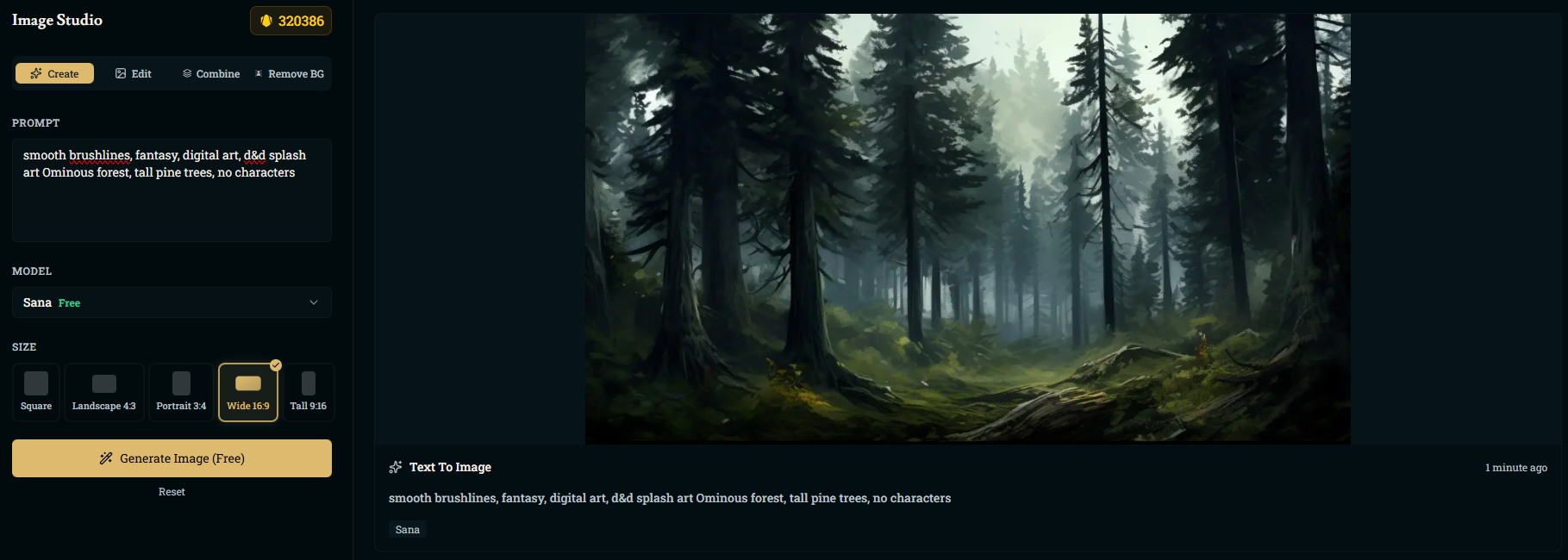
Write a prompt that describes the image you want
Select a model
Pick an aspect ratio
Click Generate Image
Available Models
You can choose from four models:
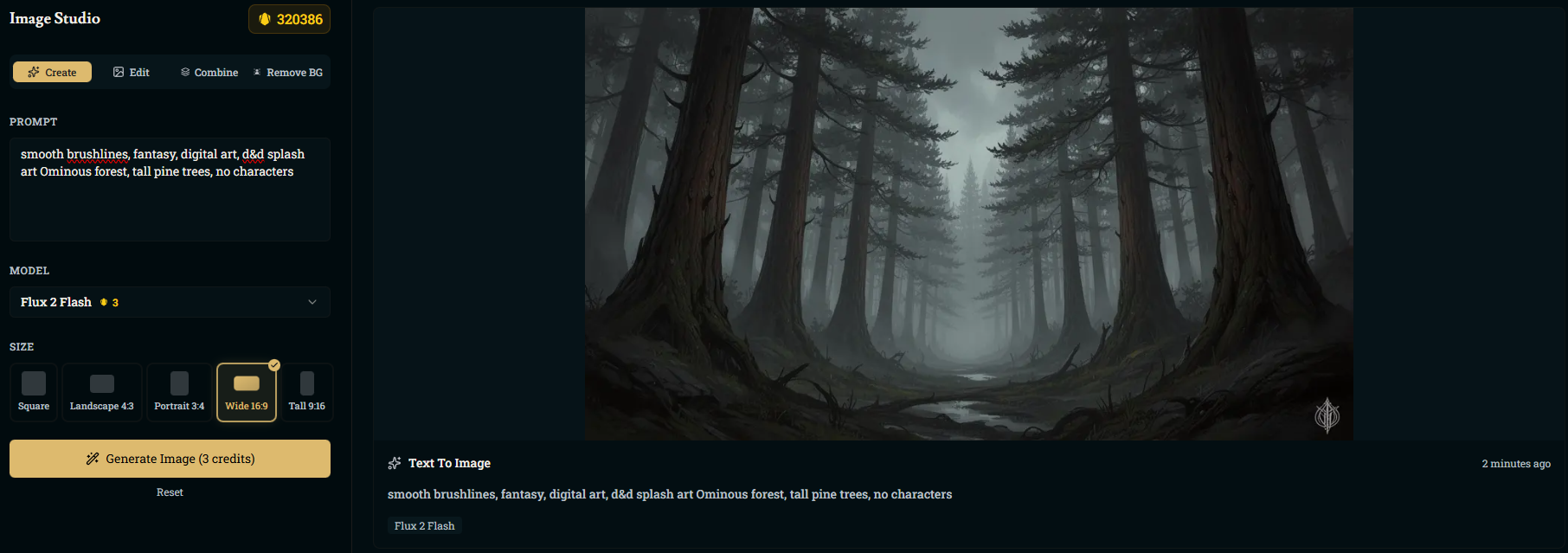
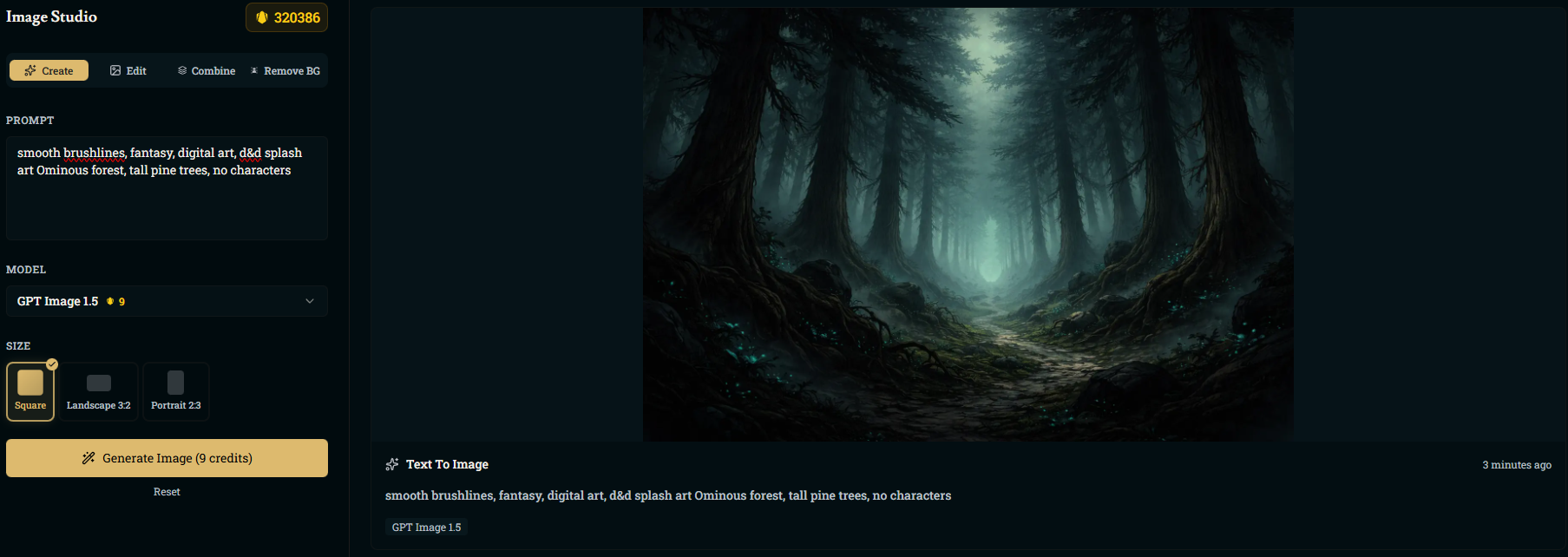
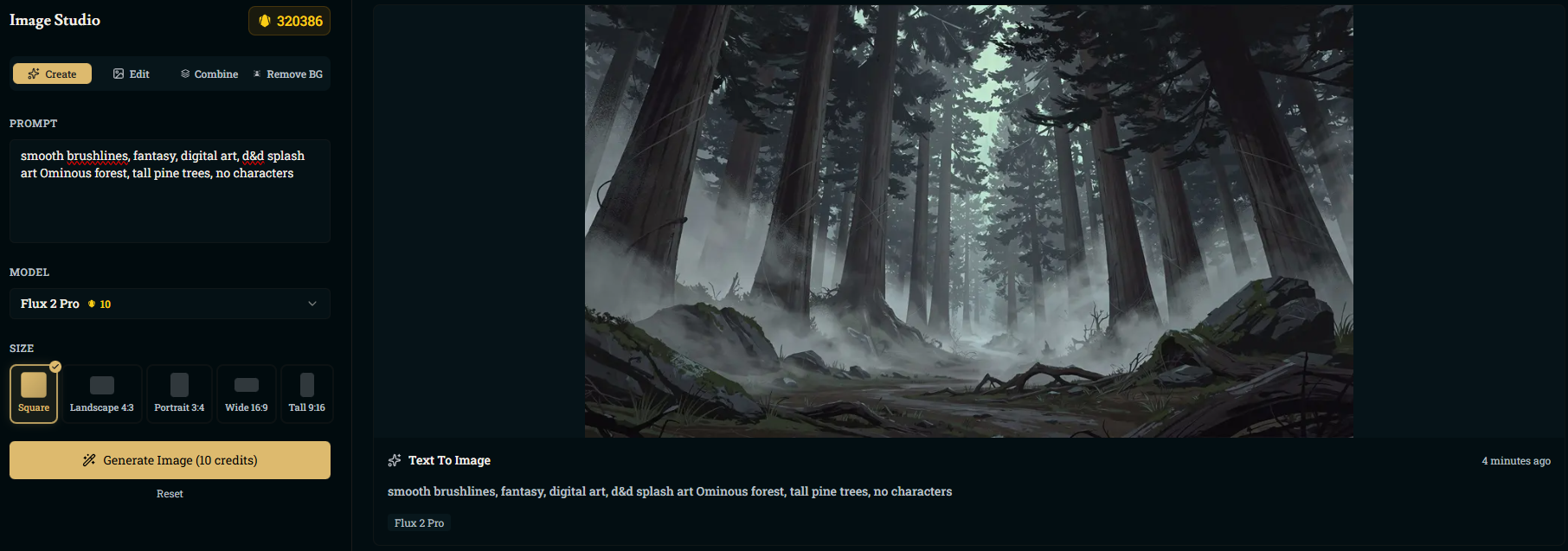
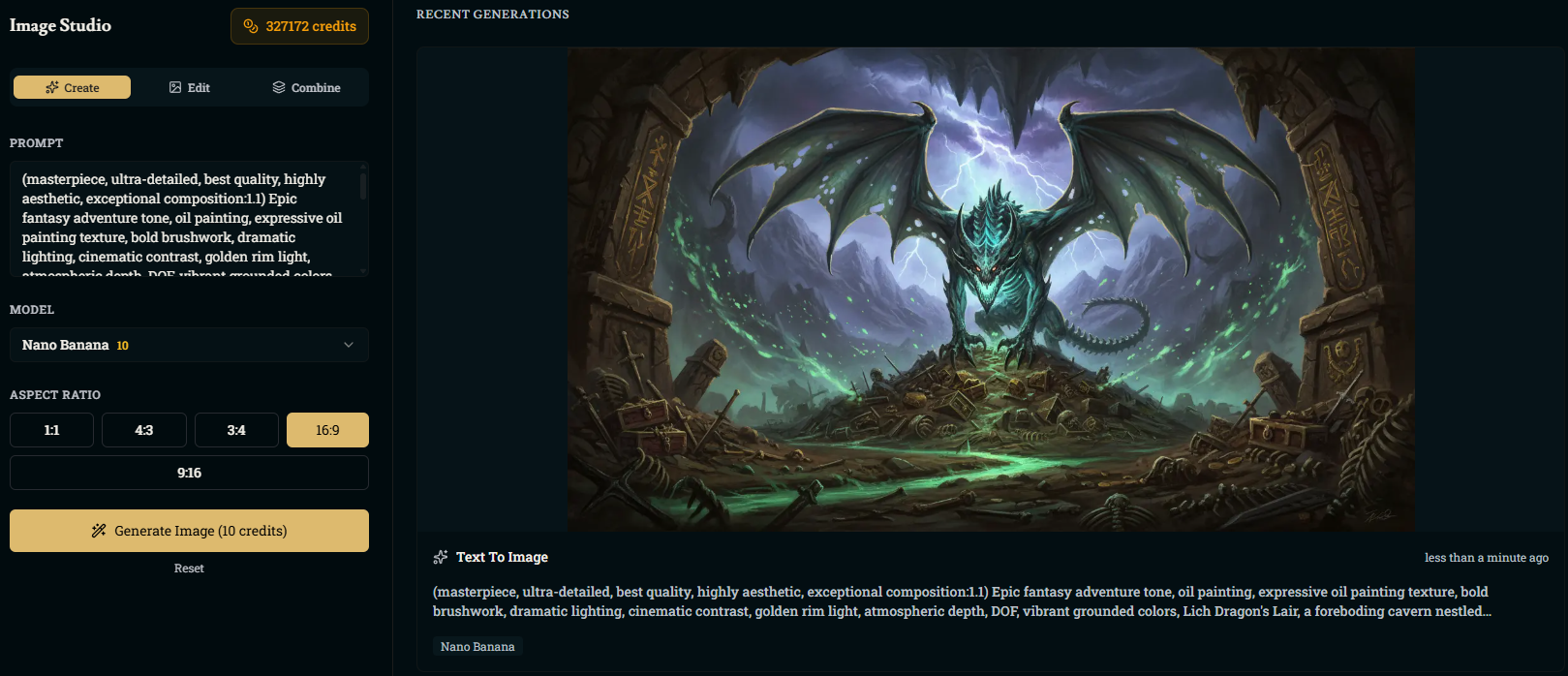
Credit-based models let you create extremely high-quality art, and the results scale noticeably with each step up.
Example Art
Sana Example Art
Flux 2 Flash
GPT Image 1.5
Flux 2 Pro
Nano-Banana Example Art
Seedream 4.5 Example Art
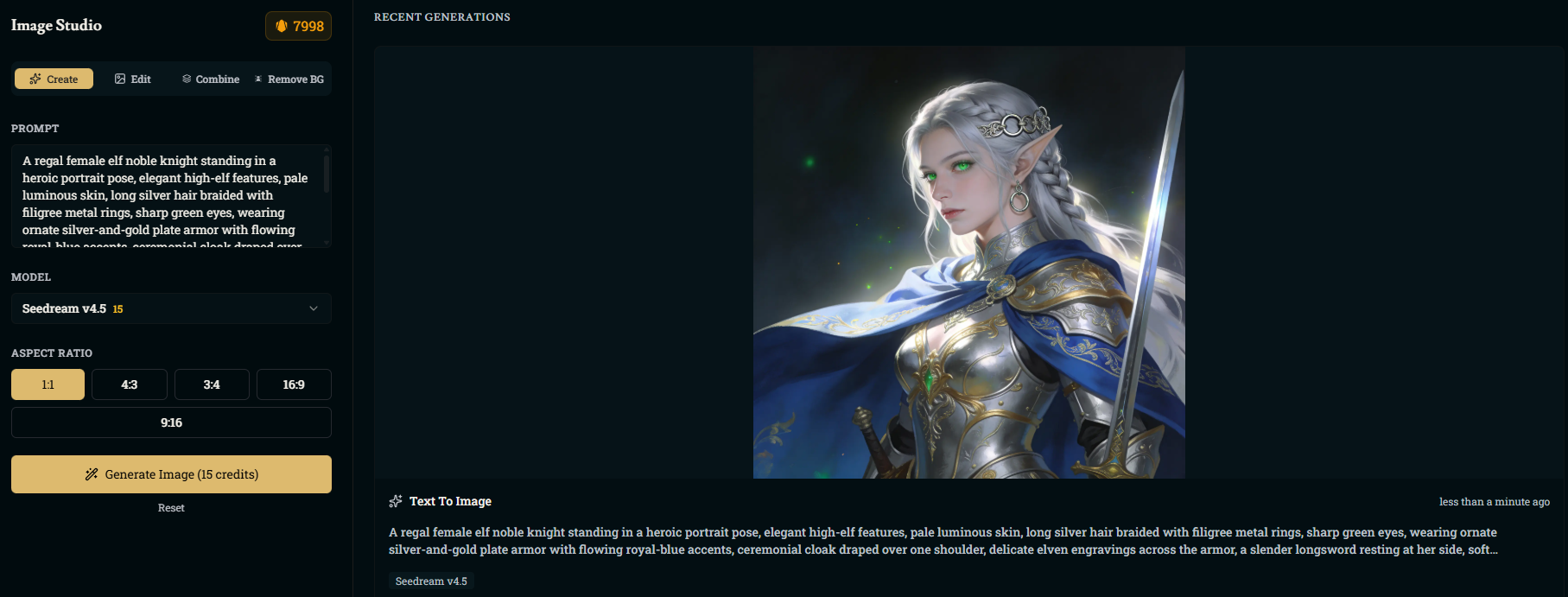
Nano-Banana Pro Example Art
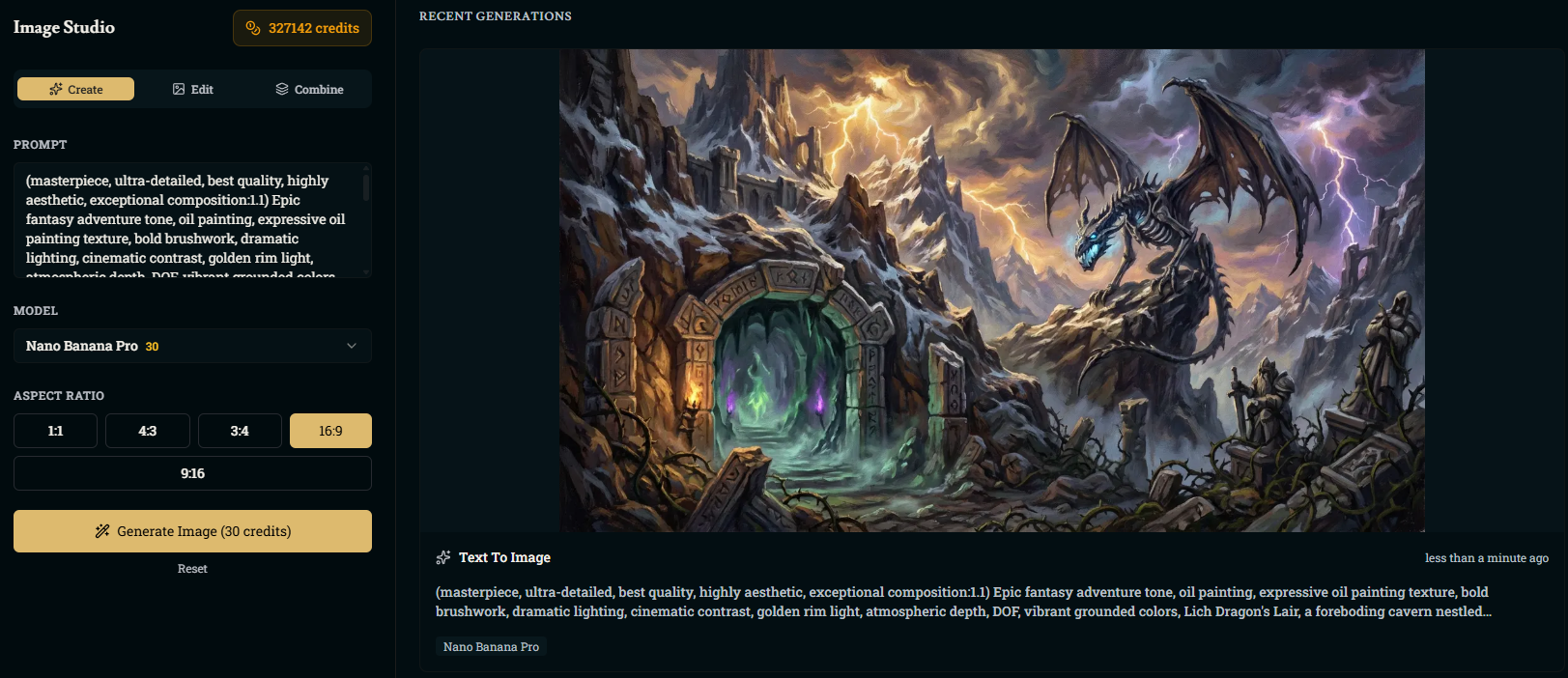
Edit Mode
The Edit tab lets you upload an existing image and modify it directly in the Image Studio.
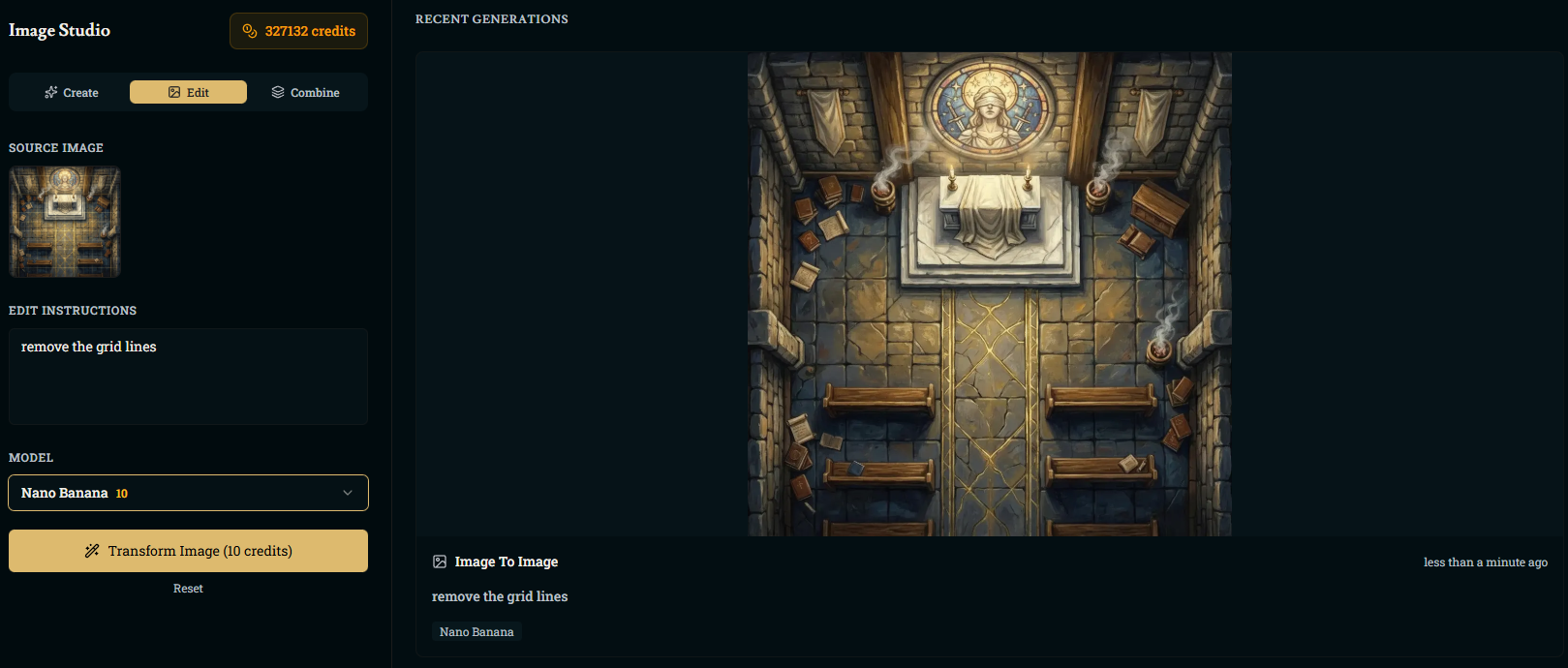
You can:
Remove objects
Replace or clean up elements
Change lighting
Repaint entire sections
Apply style changes
Improve or enhance old artwork
How It Works
Click Edit.
Upload a source image (from your computer or your Workshop)
Enter your edit instructions (Example: “remove grid lines”, “turn the torch lights blue”, “add snowfall”, etc.)
Choose Flux 2 Flash, GPT Image 1.5, Flux 2 Pro, Nano Banana, Seedream or Nano Banana Pro
Click Transform Image
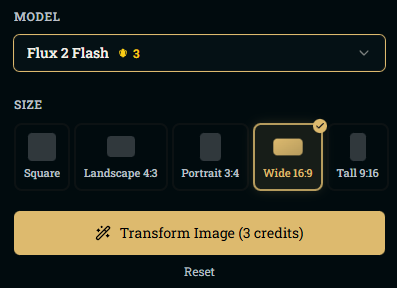
Editing always requires credits:
Flux 2 Flash (3 credits)
GPT Image 1.5 (9 credits)
Flux 2 Pro (10 credits)
Nano Banana (10 credits)
Seedream (12 credits)
Nano Banana Pro (30 credits)
Edit Mode is perfect for fixing maps, polishing character art, removing watermarks, or updating old images.
Combine Mode
The Combine tab allows you to blend or merge 2 to 4 images into a single new composition.
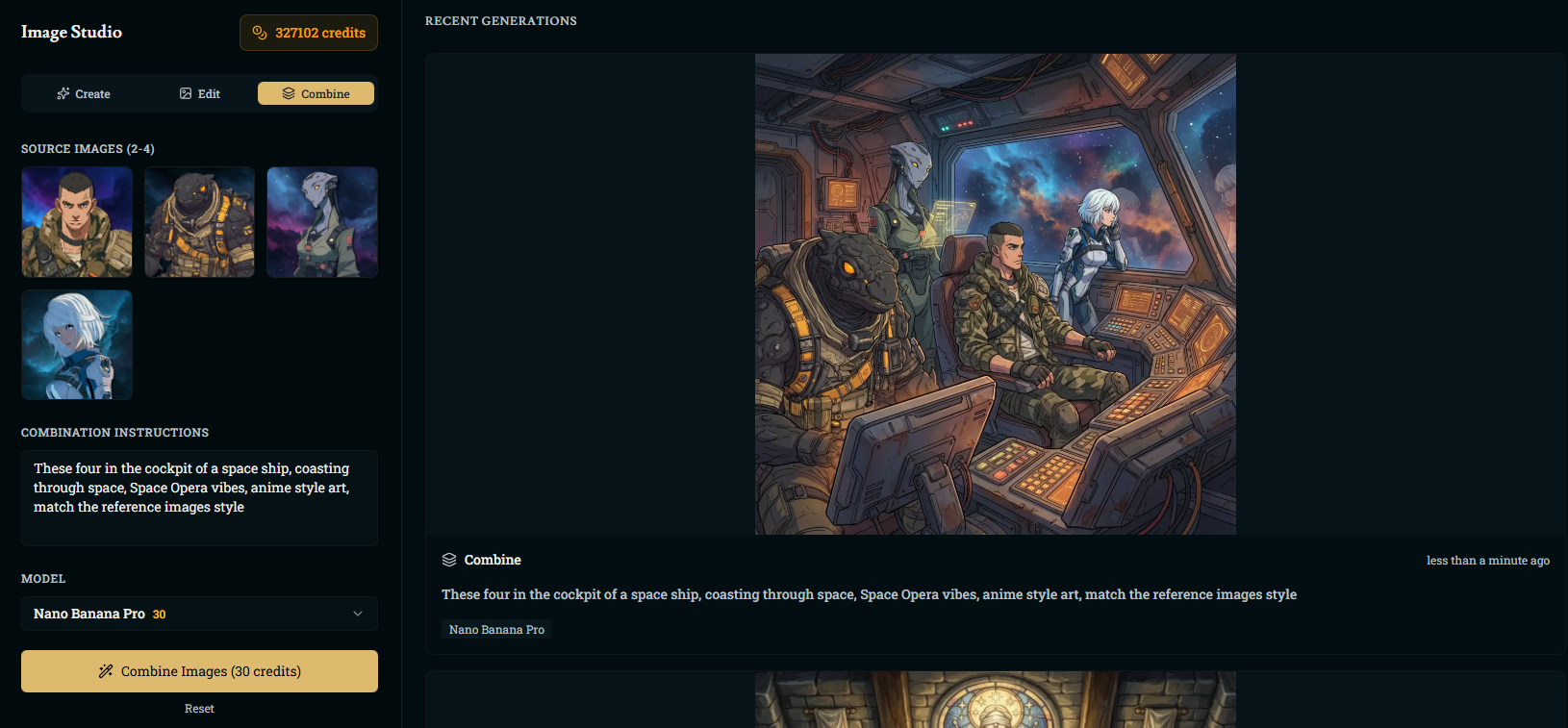
You can:
Put multiple characters into one scene
Assemble a party portrait from individual headshots
Merge landscapes together
Place characters into new environments
Convert four reference images into one cinematic illustration
Match the style between multiple images
Combining costs the same amount as editing, but certain models cost additional credits per image included in the combination. Be sure to check the final credit cost before confirming whenever you go to combine images!
How It Works
Open Combine
Upload 2–4 source images (or pull them from your Workshop)
Write combination instructions telling the generator how to merge them
Example:
“These four in the cockpit of a space ship, coasting through space, Space Opera vibes, anime style art, match the reference images style.”
Select Flux 2 Flash, GPT Image 1.5, Flux 2 Pro, Nano Banana, Seedream or Nano Banana Pro
Click Combine Images
Note: Nano Banana Pro is best when combining multiple characters, it holds style and proportions more consistently
Background Removal in Image Studio
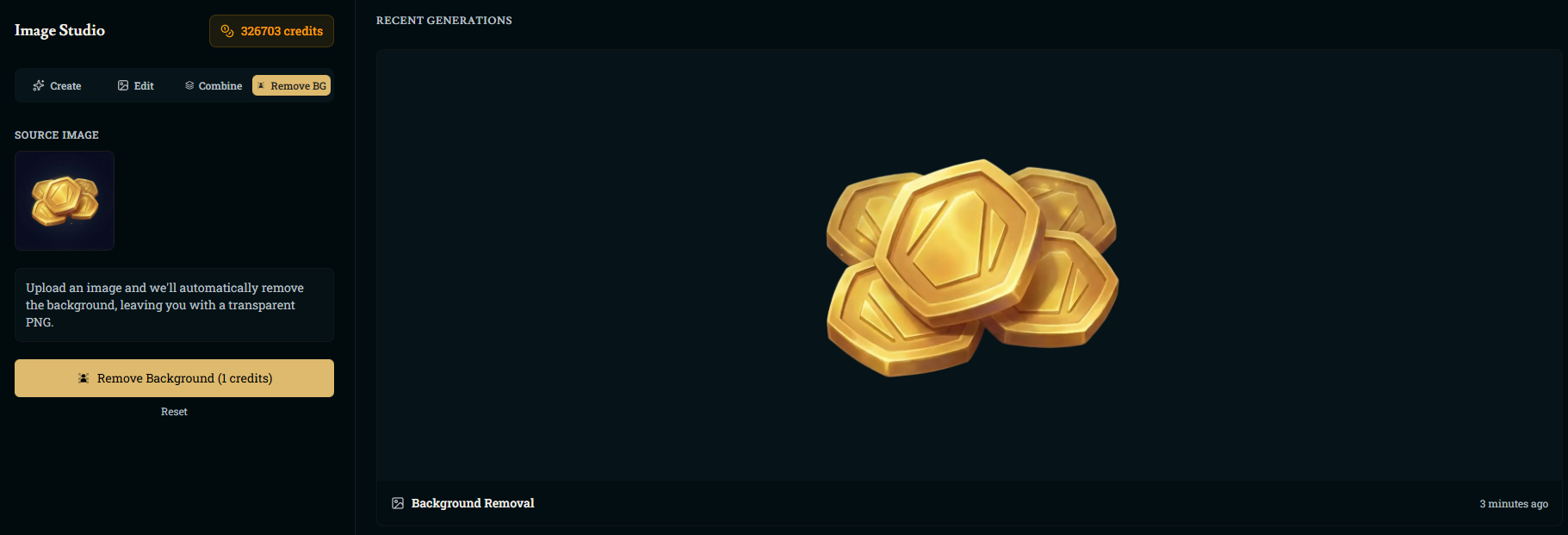
You can:
Turn character portraits into tabletop-ready tokens
Strip busy or distracting backgrounds from item art
Create clean logos or UI icons on transparent backgrounds
Prep images for maps, overlays, or other layouts
How It Works
Open Background Removal (or click Remove BG in Image Studio)
Upload a source image (or pull one from your Workshop)
Click Remove Background (1 credit) to generate a transparent PNG
Download your new cut-out image from Recent Generations or reuse it in other Image Studio tools
Note: there’s a Background Removal button on images now, you can find the button in the top-right corner of an existing image while in the creation tab
Gallery
Every image you generate, whether it’s from Create, Edit, Combine, or in-game Scene Generation, appears in your Gallery.
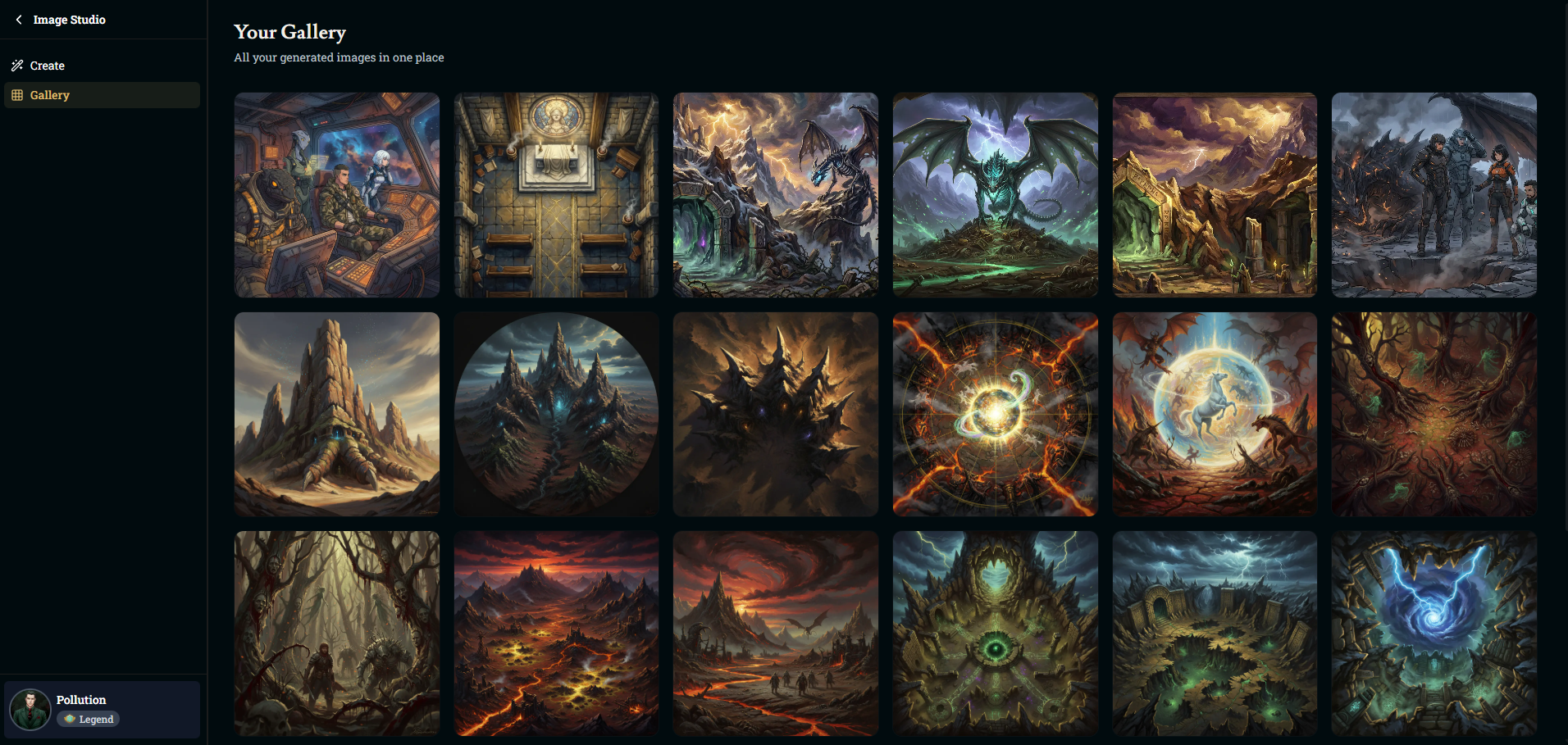
The Gallery shows:
Your most recent creations
A scrollable thumbnail grid of all generated art
Options to view, download, or delete your images
If you ever lose track of something you generated, just visit the Gallery to find it again.
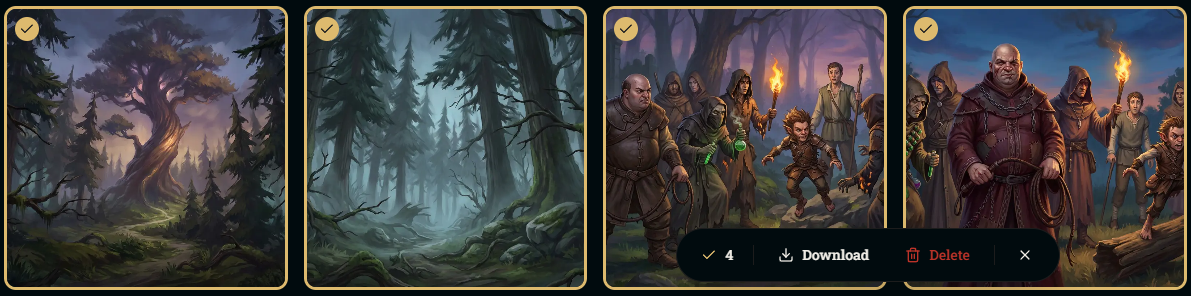
Bulk Selection:
Bulk select to download/delete (Shift-click on desktop, tap-and-hold on mobile)
You can browse Image Studio generations from any form via the image picker’s Browse button.
Was this helpful?