Areas & POIs
Written By Pollution
Last updated 11 months ago
Areas and Points of Interest
Areas and POIs are how you turn a flat map into a living world. Areas define the big regions (districts, forests, tunnels), while POIs mark specific locations your players can visit (inns, dungeons, shops, landmarks). This guide walks through creating and editing both, using AI to help, and working with the map toolbar at the bottom of the screen.
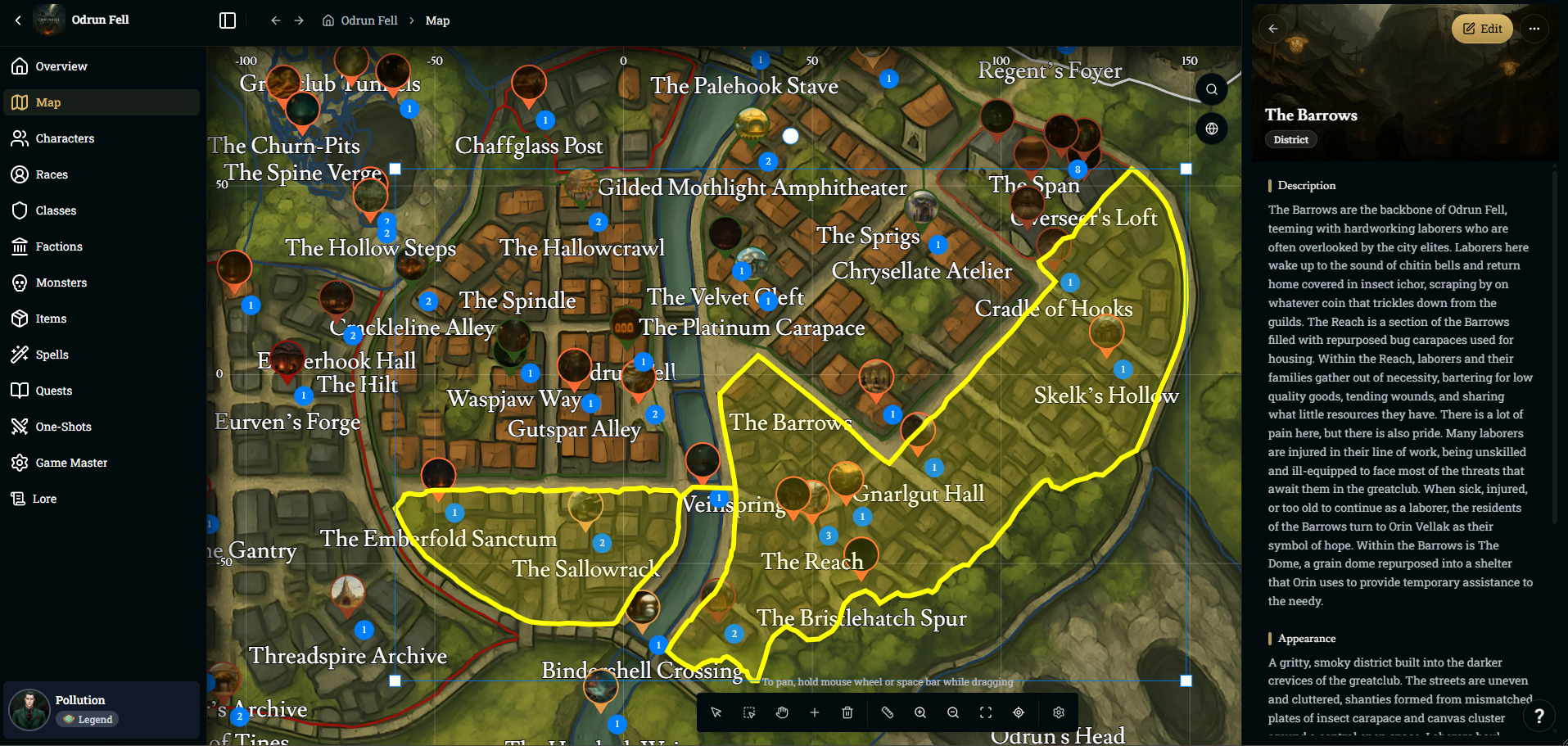
Creating and Editing Areas
Areas are large shapes on your world map that group locations together
Add a new Area
Open your world, then go to the Map tab
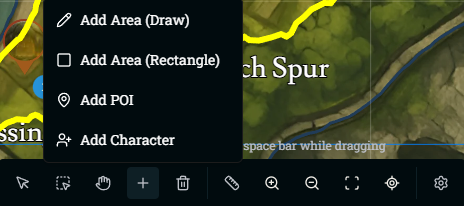
Use the toolbar at the bottom and click the + button
Choose Add Area (Draw) to freehand a shape, or Add Area (Rectangle) to place a clean rectangle you can adjust later
Click on the map to place or draw your area
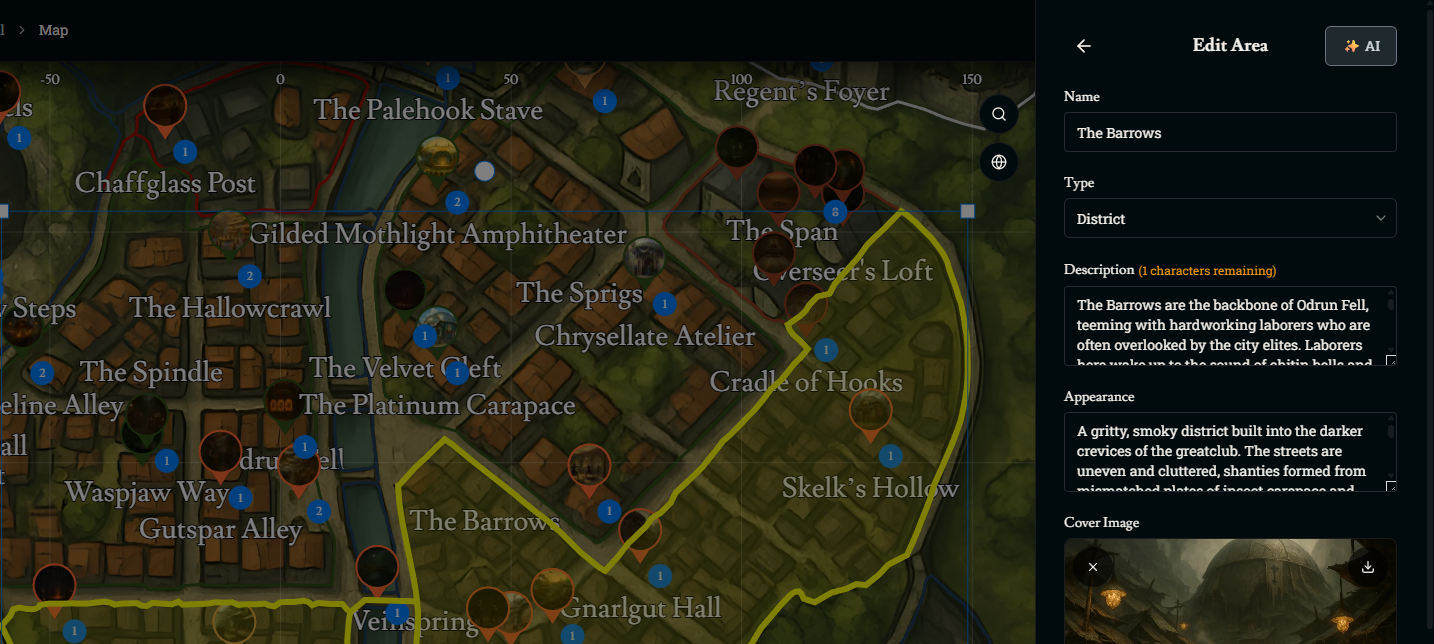
Set Area details
Click the Area once to select it. The Edit Area panel appears on the right.
Fill out:
Name – What this region is called in your world.
Type – Choose the category that best fits (district, region, dungeon, etc.)
Description – A lore-style overview of what this area is and why it matters
Appearance – How it looks and feels on the ground (architecture, atmosphere, terrain)
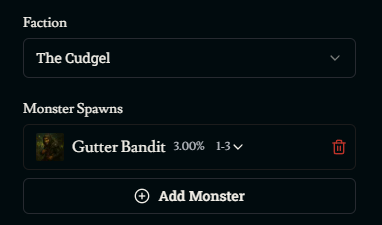
Factions and Monster Spawns
Faction – Assign a faction that “controls” or is most associated with the area
The faction color will tint the area on the map and change the border color
Monster Spawns – Add monsters that can appear in this area
Click Add Monster, choose a monster, and set a spawn chance and rate
These settings influence random encounters and where Franz pulls monsters from when generating fights in this region
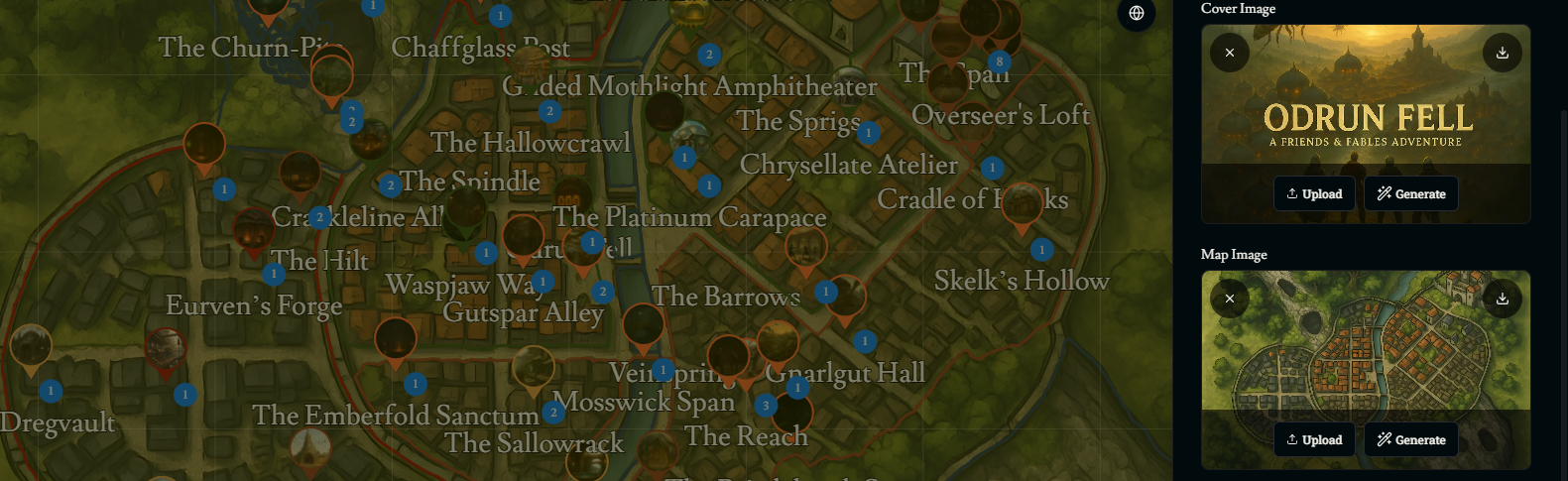
Cover Image & Map Image
Cover Image – The main art used when players view the area
Map Image – An image that appears on the world map that can be seen while players are traveling
Using AI for Area Text and Images
You can have AI generate descriptions, appearances, and images for an area all at once
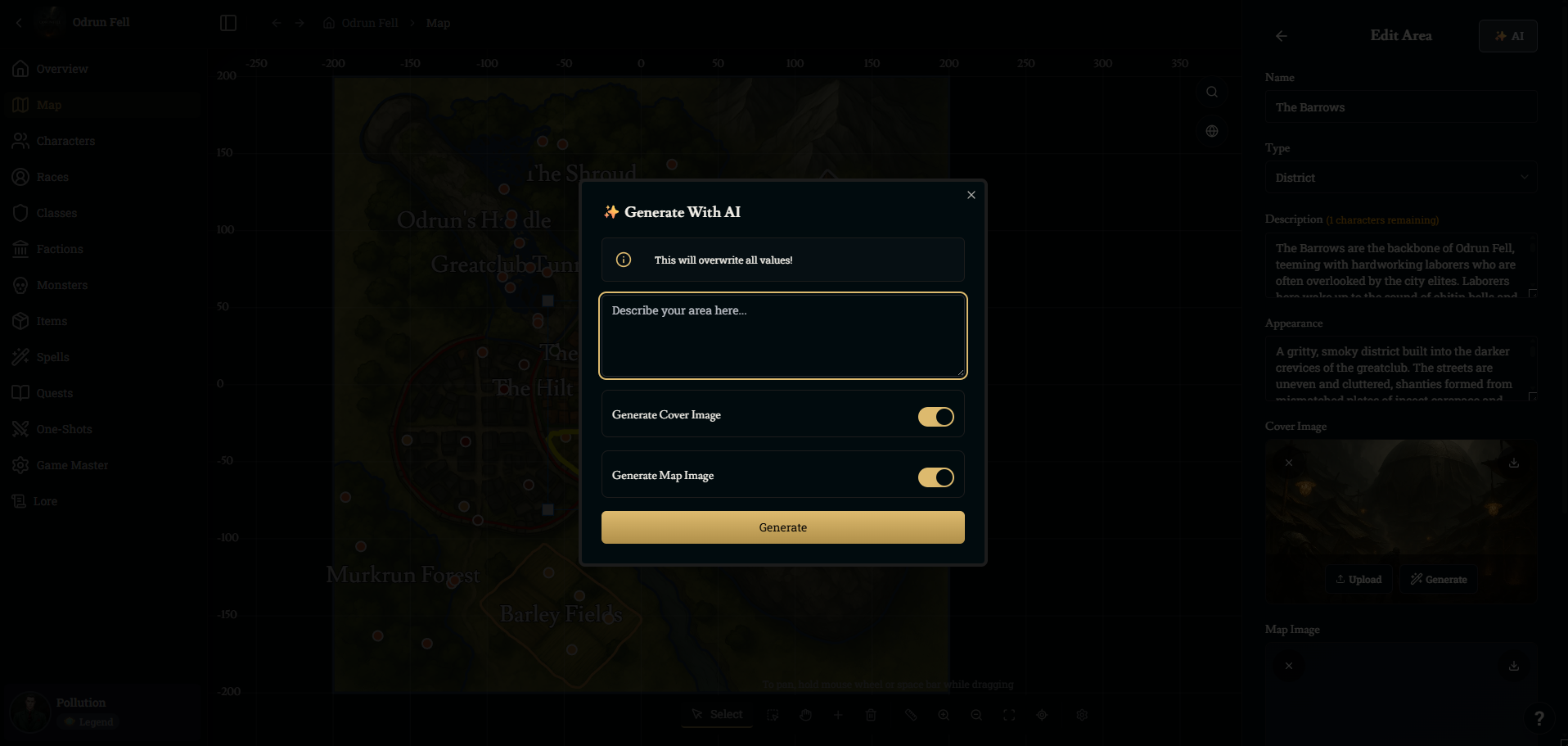
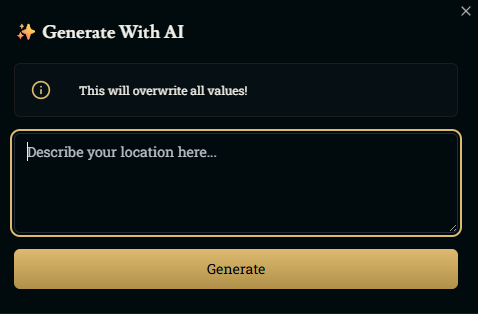
Click the AI button on the Edit Area panel
In the Generate With AI window:
Describe the area in plain language: what it’s for, who lives there, what it looks like
Toggle Generate Cover Image and Generate Map Image on or off depending on what you need
Click Generate
The AI will overwrite the Area’s Description, Appearance, and any images you selected to generate, so it’s best to use this at the beginning or when you’re okay replacing existing content.
Adjusting Area Shapes and Appearance on the Map
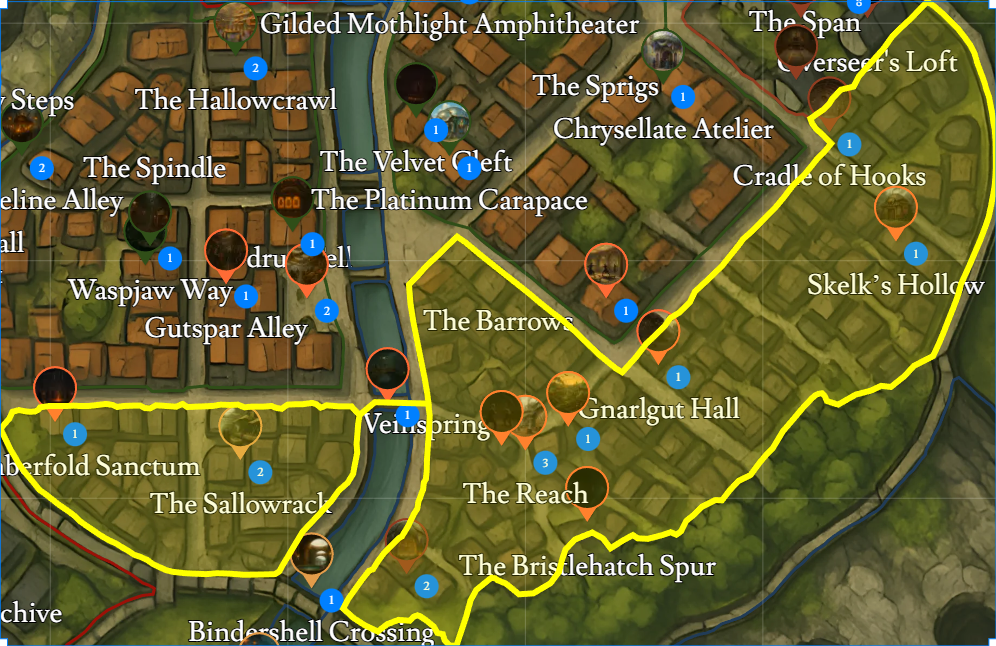
Area shapes are fully editable so they can match the exact outline of streets, tunnels, or natural borders
Select vs. reshape
Make sure you’re using the Select tool (arrow icon) on the bottom toolbar
First click on an Area to select the shape, you can drag it around the map or resize it
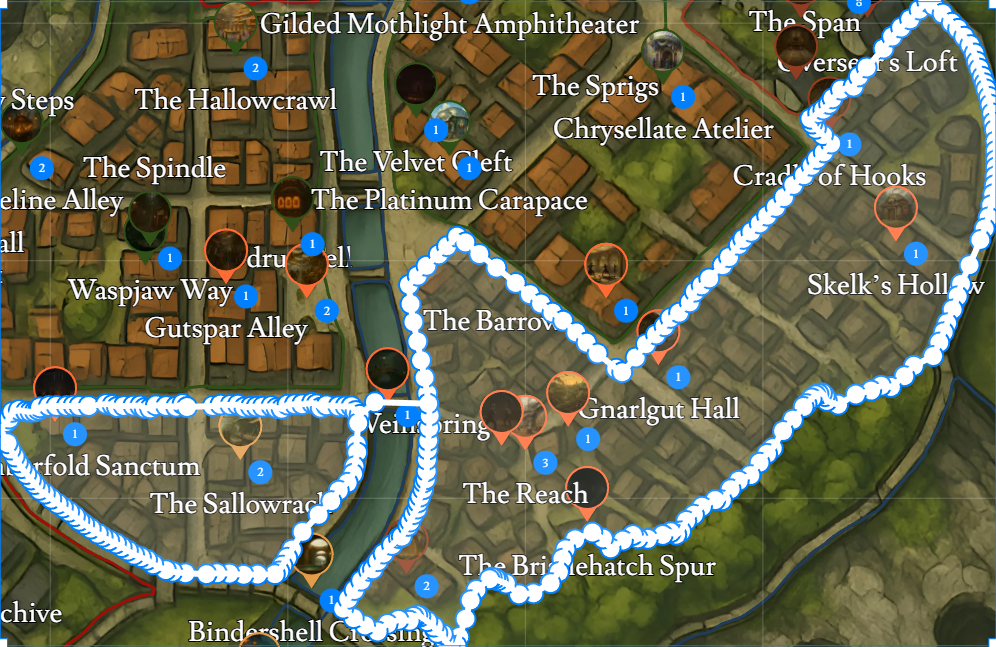
Second click on the same Area while still in Select mode to reveal polygon points around the border
Editing the polygon
Drag existing points to line the border up with streets, rivers, or edges of terrain
Click and drag on the border (between two points) to add a new point and refine the shape
Use this to carve out irregular districts, follow cliff lines, or trace the edges
Click twice on a point to turn the polygon red and delete if you need to remove one
Visual tweaks with Faction & Layer settings
Changing the Faction changes the Area’s color on the map
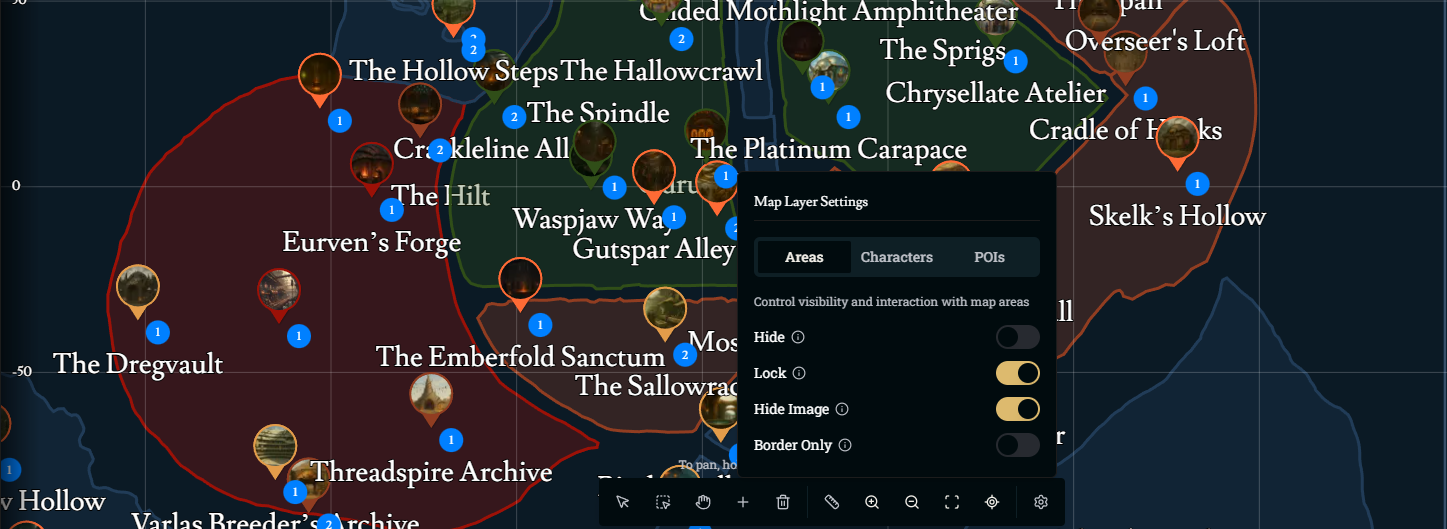
You can also use Map Layer Settings (see the toolbar section below) to:
Hide area images
Show borders only
Temporarily hide or lock Areas while editing characters or POIs
Creating Points of Interest (POIs)
POIs are specific, visitable locations like inns, towers, caverns, or shrines.
Add a new POI
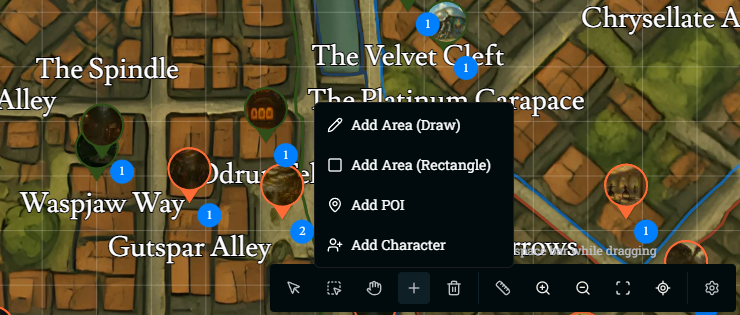
On the bottom toolbar, click the + button
Choose Add POI, then click where you want it on the world map
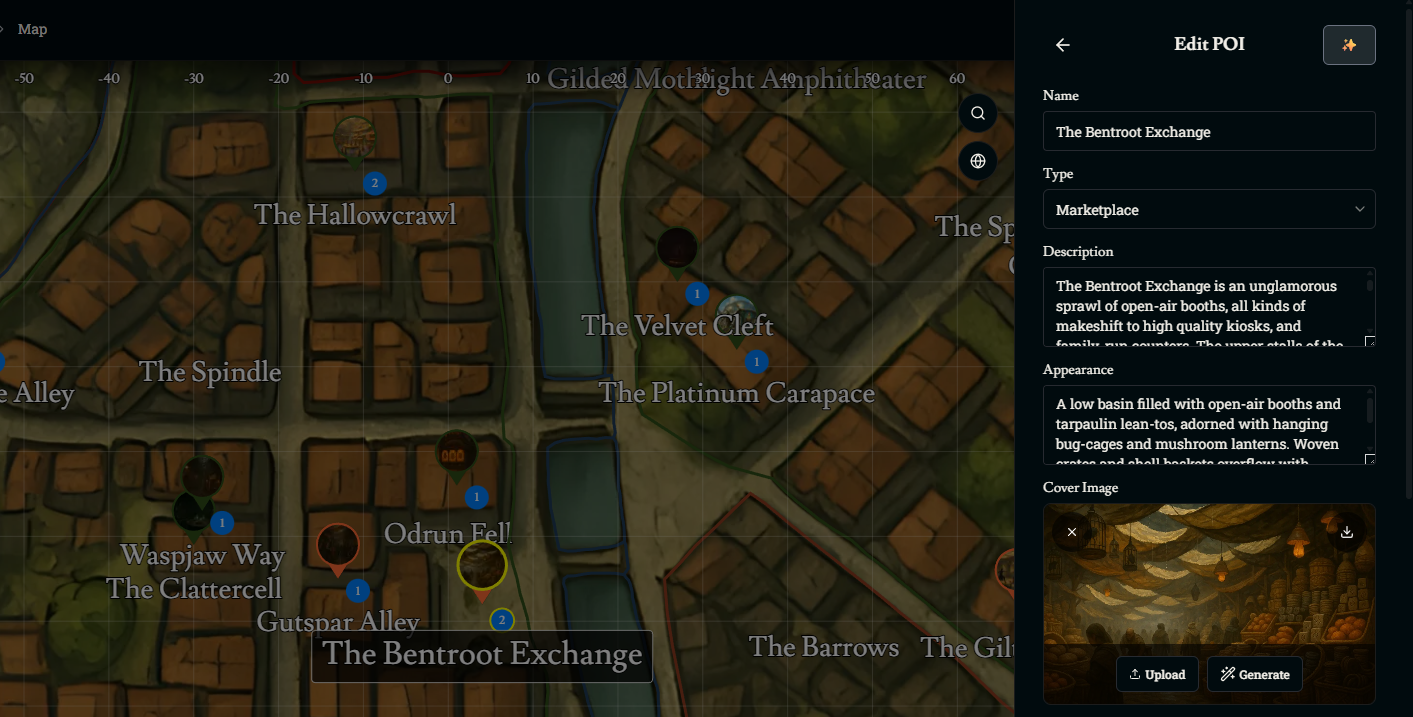
A pin appears and the Edit POI panel opens on the right
Set POI details
Name – The location’s name
Type – Select a POI type (Inn, Dungeon, Town, etc.)
Description – What this place is, who runs it, and why it matters to the story
Appearance – How it looks when the party arrives
Factions for POIs
Assign a Faction if the POI is controlled by a particular group. This helps Franz understand who owns or influences the location and makes faction-based storytelling easier

Cover & Battle Map Images
Cover Image – The art that shows when you open the POI
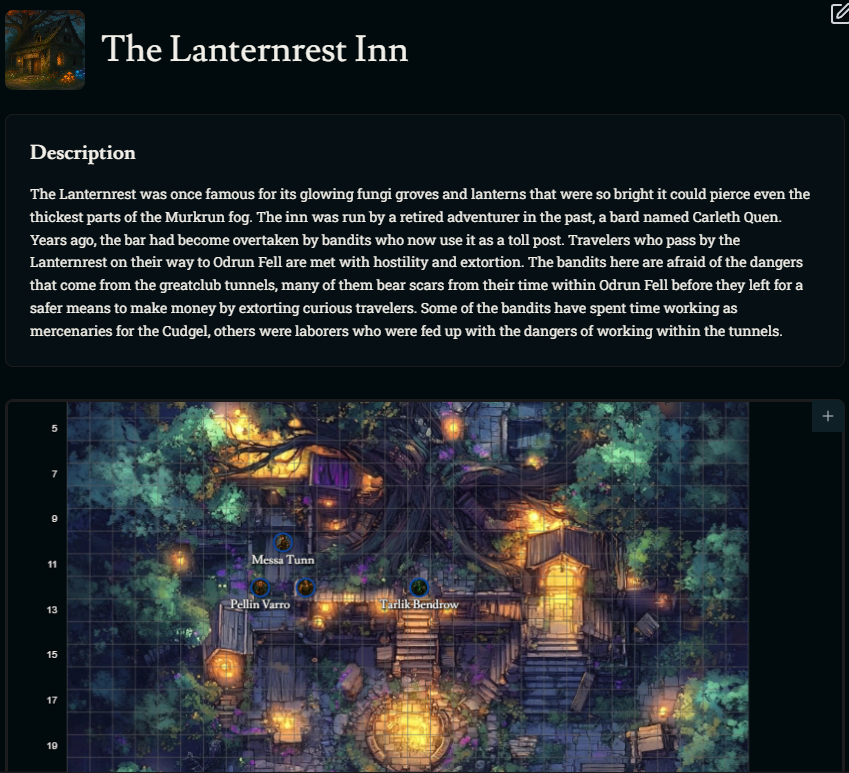
Map Image – The battle map for in game movement and encounters at this location
Using AI to Build POIs
Just like Areas, POIs can be built quickly with AI
Select a POI and click the AI button on the Edit POI panel
In the Generate With AI window:
Describe the location in plain language: what it’s for, who lives there, what it looks like
Click Generate
Map Toolbar Overview
The toolbar at the bottom of the screen is your main control center for editing Areas, POIs, and tokens. From left to right:

Select Tool (Arrow)
Click this to select and move Areas, POIs, characters, and monsters
Use this when you want to click once to select an Area, then click again to edit its polygon points
Hold spacebar while using the left click in order to pan
Box Select Tool
Drag a box on the map to select multiple tokens or POIs at once
Pan Tool (Hand)
Click and drag to move around the map without selecting anything
Plus Menu (+)
Opens a dropdown with:
Add Area (Draw) – Freehand draw an Area
Add Area (Rectangle) – Add a rectangular Area
Add POI – Place a new point of interest
Add Character – Drop a character onto the map at the clicked location
Trash Can (Delete)
While selected, clicking on any Area, POI, or Character will delete it
Don’t worry about making a mistake, deleting anything completely requires a confirmation
Measure Tool (Ruler)
Click and drag to start measuring
Shows distance for walking and distance in kilometers on world maps, helping you judge travel times and ranges
Zoom In (+)
Zooms the map in
Zoom Out (–)
Zooms the map out
Fit to Screen (Box icon)
Zooms and pans to show the entire map, centered in your view
Focus on Active Character (Crosshair icon)
In a campaign: centers the camera on the current player character’s position
Outside a campaign: centers the camera on the middle of the map
Map Layer Settings (Gear icon)
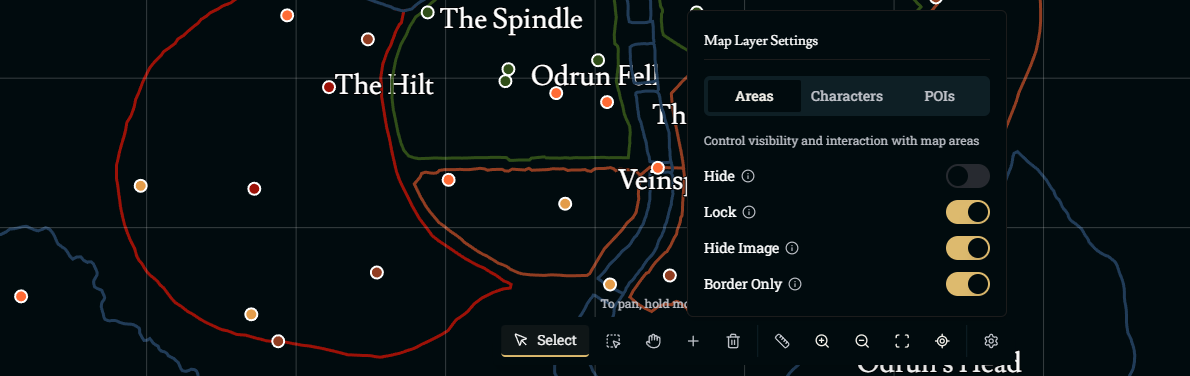
Opens the Map Layer Settings panel with three tabs: Areas, Characters, and POIs
Map Layer Settings
The Map Layer Settings panel lets you control the visibility and interaction of different layers so you can focus on what you’re editing
Areas Tab
Hide – Toggles visibility of all Areas
Lock – Prevents Areas from being accidentally moved or edited while you drag POIs or characters around
Hide Image – Hides Area map images, leaving only faction colors and borders
Border Only – Hides both the image and faction fill color, leaving just the outline of each Area
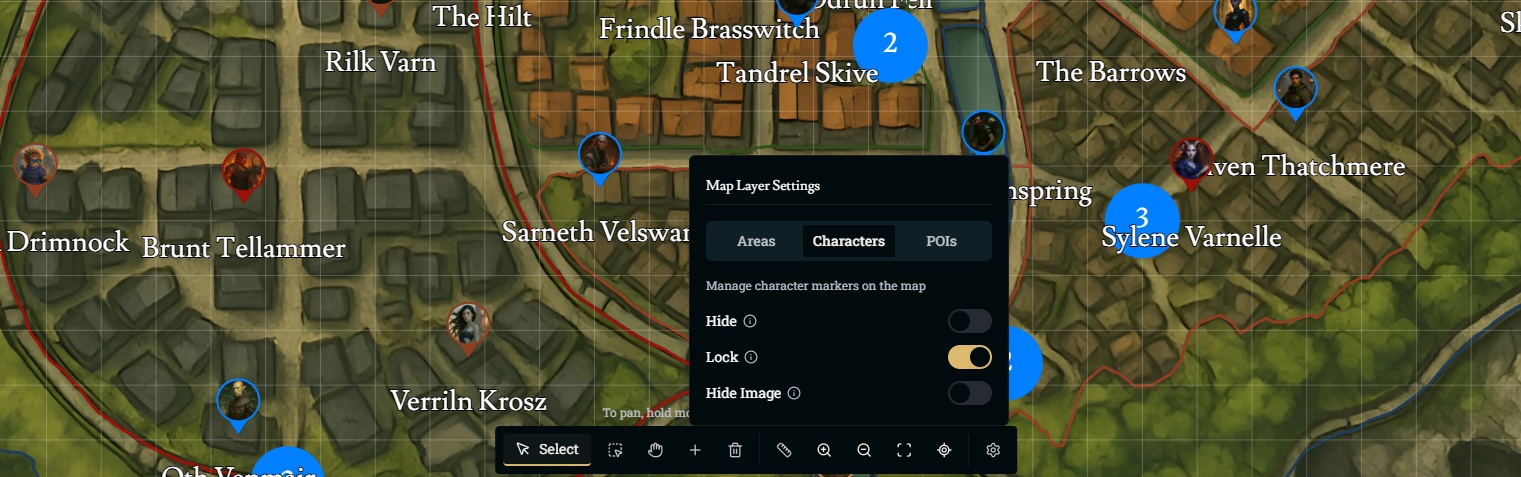
Characters Tab
Hide – Shows or hides all character tokens on the map
Lock – Prevents character tokens from being moved or edited
Hide Image – Hides the portrait art inside each character’s token bubble while leaving the token itself visible
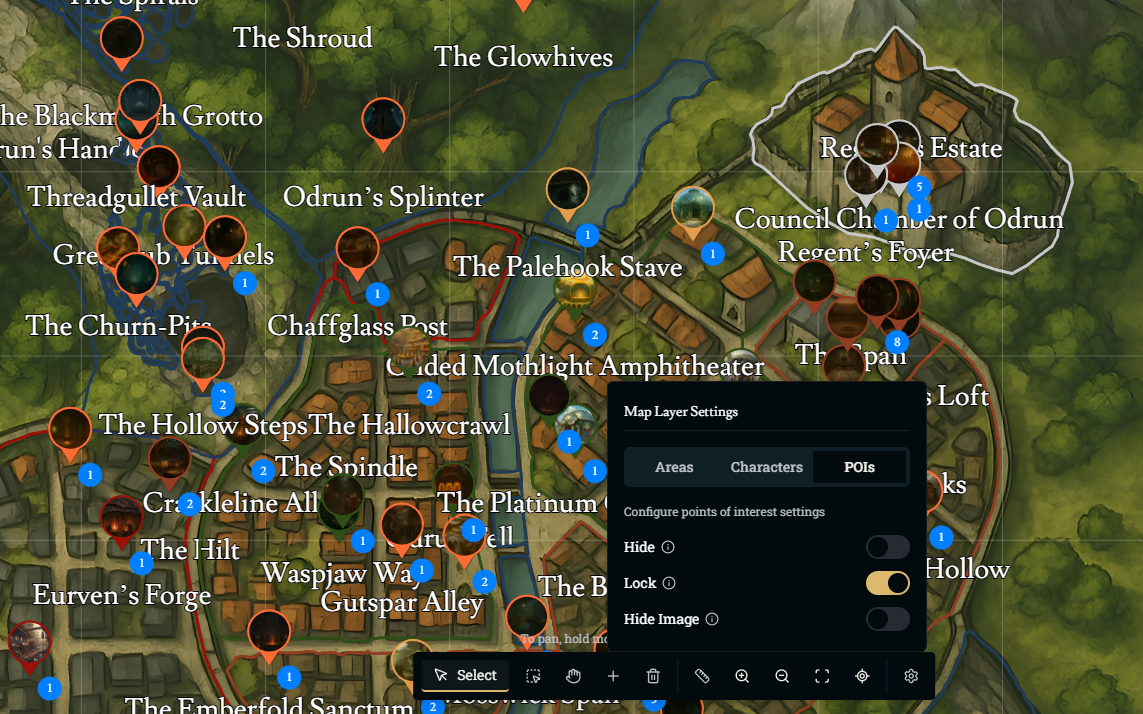
POIs Tab
Hide – Hides or shows all POI pins
Lock – Locks POI positions so you don’t accidentally drag them
Hide Image – Hides the small image associated with each POI pin, if one is displayed
Was this helpful?