In-Game Scene Image Generation
Written By Pollution
Last updated 9 months ago
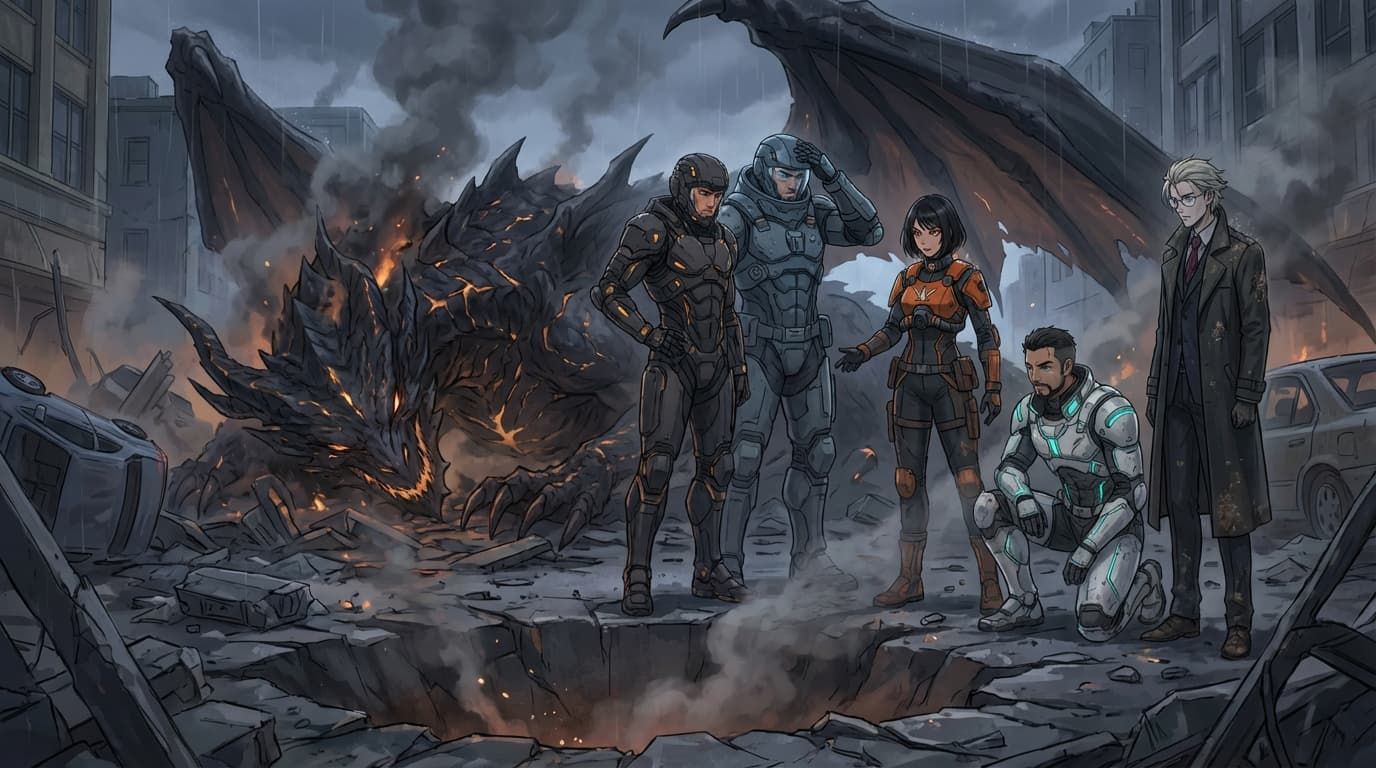
In-Game Scene Image Generation
Bring your favorite moments to life right inside your campaign. Scene images let you turn any moment in play into a cinematic illustration of your party, NPCs, and the location you’re in.
You can use this during combat, narration, travel, downtime, pretty much anytime you want a visual snapshot of what’s happening.
Where to Find “Generate Scene Image”
Whenever you’re in a campaign, you’ll see a Generate Scene Image button (paintbrush icon) near the message input bar or in certain result panels (like encounter summaries).
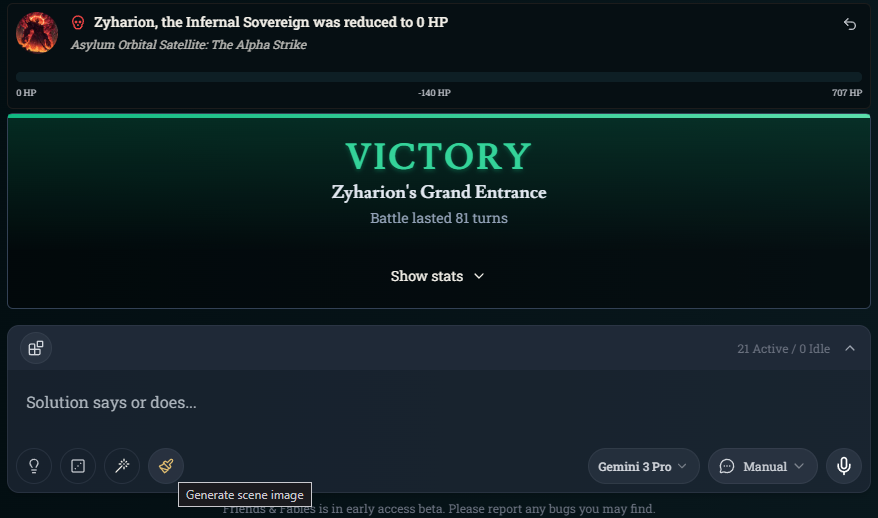
Play until something cool happens
Click Generate Scene Image
The Generate Scene panel opens
That’s it, you’re now setting up an in-game illustration of the current scene.
Choosing Locations & Characters
At the top of the Generate Scene panel you’ll see Key Subjects:
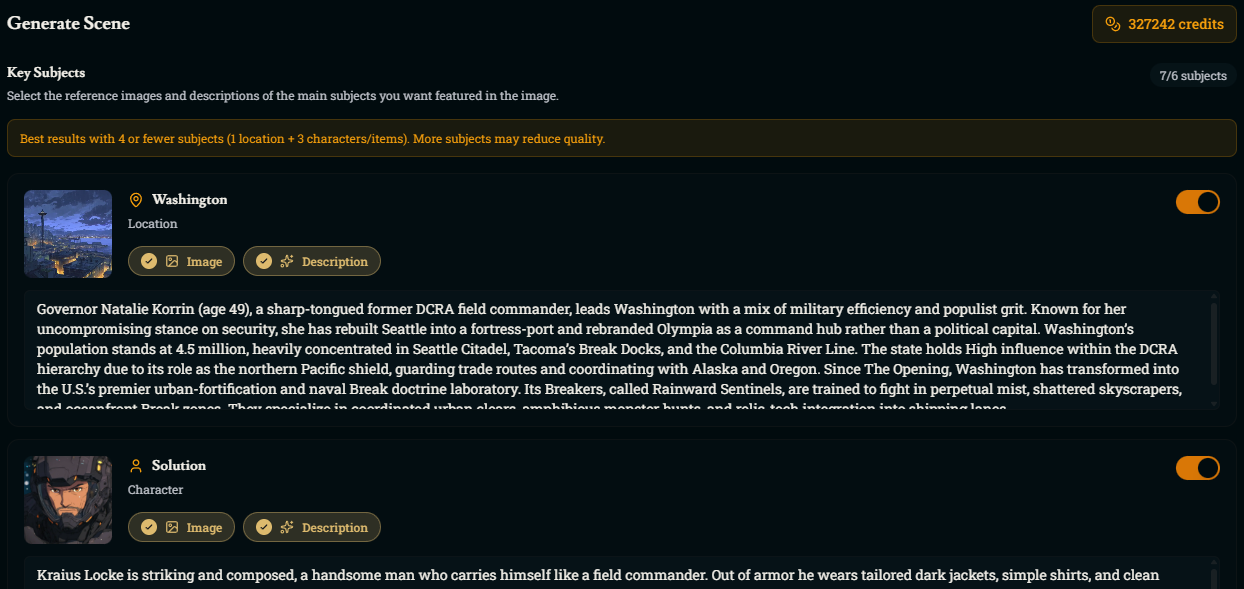
The current location (example: “Washington”)
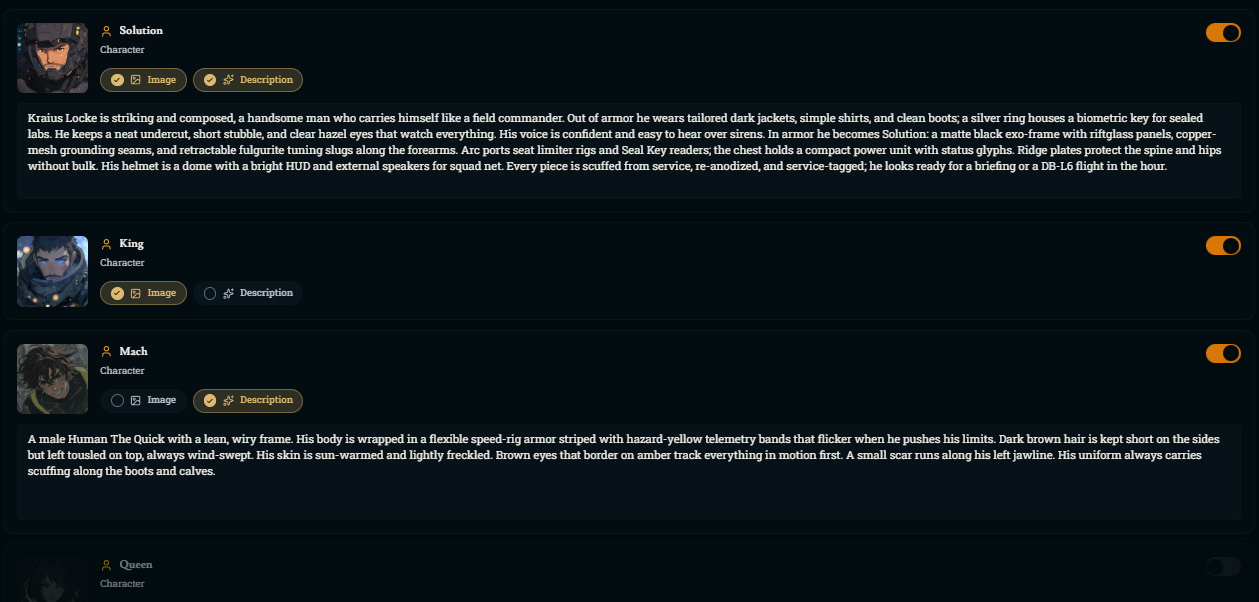
Any PCs, NPCs, and monsters currently in the scene (example: Solution, King, Mach, Queen, etc.)
Each subject has:
A thumbnail image
Two small toggles: Image and Description
A right-side on/off switch
How the toggles work
Image ON, Description ON – Uses both the portrait and written description, best for accurate, on-model characters
Image ON, Description OFF – Ignores the text, focuses on the visual portrait only
Image OFF, Description ON – Ignores the portrait, uses only the written description (good if you don’t like the portrait but like the concept)
Right-side switch OFF – Excludes that subject entirely from the scene
Tip: The generator works best with 4 or fewer subjects (1 location + 3 main characters). Turn off minor NPCs if you just want the party and a boss, for example. The maximum number of reference images is 6, and you can always test your luck with Nano-Banana Pro, from my own personal experience it has been doing an excellent job with scene construction.
Picking Art Style & Aspect Ratio
Below your subjects you’ll see:
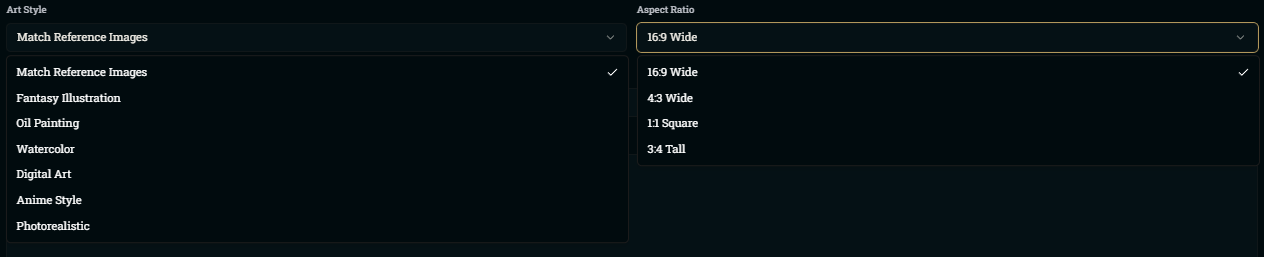
Art Style
Match Reference Images (default) – Tries to match the existing portrait styles
Other options (like Fantasy Illustration, Oil Painting, Anime Style, etc.) – Great for experimenting with different looks
Aspect Ratio
16:9 Wide is the default and works well for cinematic group shots.
1:1 Square is great for covers or thumbnails
4:3 or 3:4 can be useful for portraits or handouts
Choose whatever best fits how you plan to use the image (wallpaper, session recap, character art, etc.)
Choosing an Image Model & Credits
Scene generation uses our premium image models, which cost credits per image:
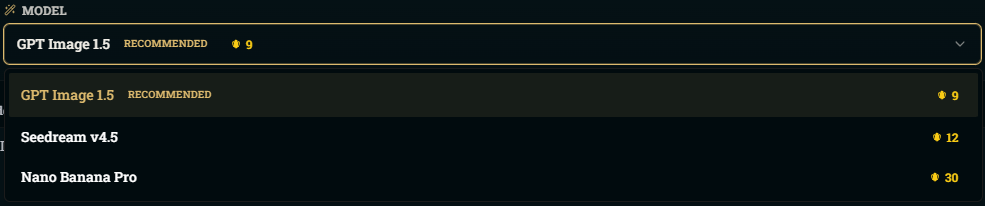
GPT Image 1.5 – 9 credits per image
Cheaper, fast, and still very strong. Definitely use this one if you want to save credits and you’re only generating a single character’s scene. GPT can still handle multiple characters pretty well and is recommended for most casual scene generations.
Seedream - 12 credits per image
Balanced quality and speed, ideal for character portraits and stylized scenes when you want more detail than GPT Image 1.5 but don’t need the full intensity of Nano Banana Pro.
Nano Banana Pro – 30 credits per image
Higher quality, better with multiple characters and keeping your world’s style consistent. Recommended for big story moments.
Some notes about credits:

Subscribers receive monthly bonus credits based on their plan, and credits roll over if you don’t use them
Scene generation only charges credits when the premium model runs successfully, so if a generation errors out, you won’t be charged, and you can review usage on your account credit history page
Adding Scene Instructions
Under Additional Instructions, you can describe exactly what’s happening:
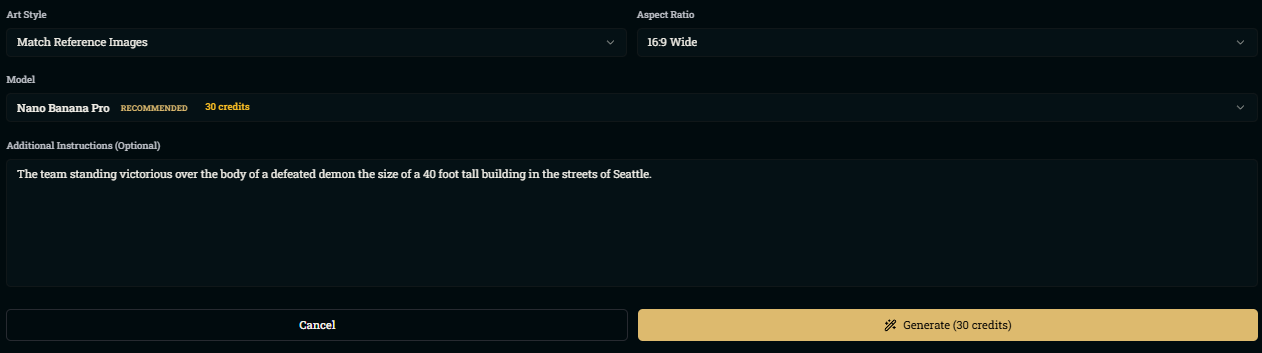
Examples:
“The team stands victorious over the smoking corpse of a 40-foot demon in a ruined Seattle street, rain falling through the ash.”
“Close-up of Solution and King clasping forearms in the crater, Mach sprinting in the background.”
“Wide shot of the party marching through a snowy Washington highway, distant Break Gate glowing on the horizon.”
You can mention:
What’s happening (victory, exploration, tense standoff)
Camera framing (wide shot, close-up, low angle)
Mood & lighting (rainy, sunset, eerie green glow)
What should be emphasized (the boss, the party, the environment)
The more specific (but still concise) you are, the better the result.
Generating the Image In-Game
Once everything looks good:
Click Generate
The image is created using your chosen model
When it’s done, the finished scene image appears right in your campaign, attached to the message
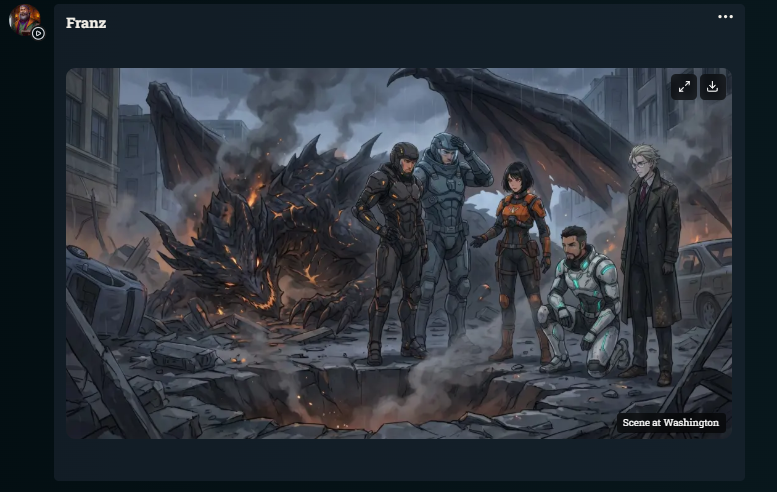
You can open it, zoom in, and show it off to your table immediately! This is perfect for celebrating boss kills, dramatic reveals, or big story beats.
Viewing Images Later in Image Studio
Every image you generate in-game is also available in the Image Studio:
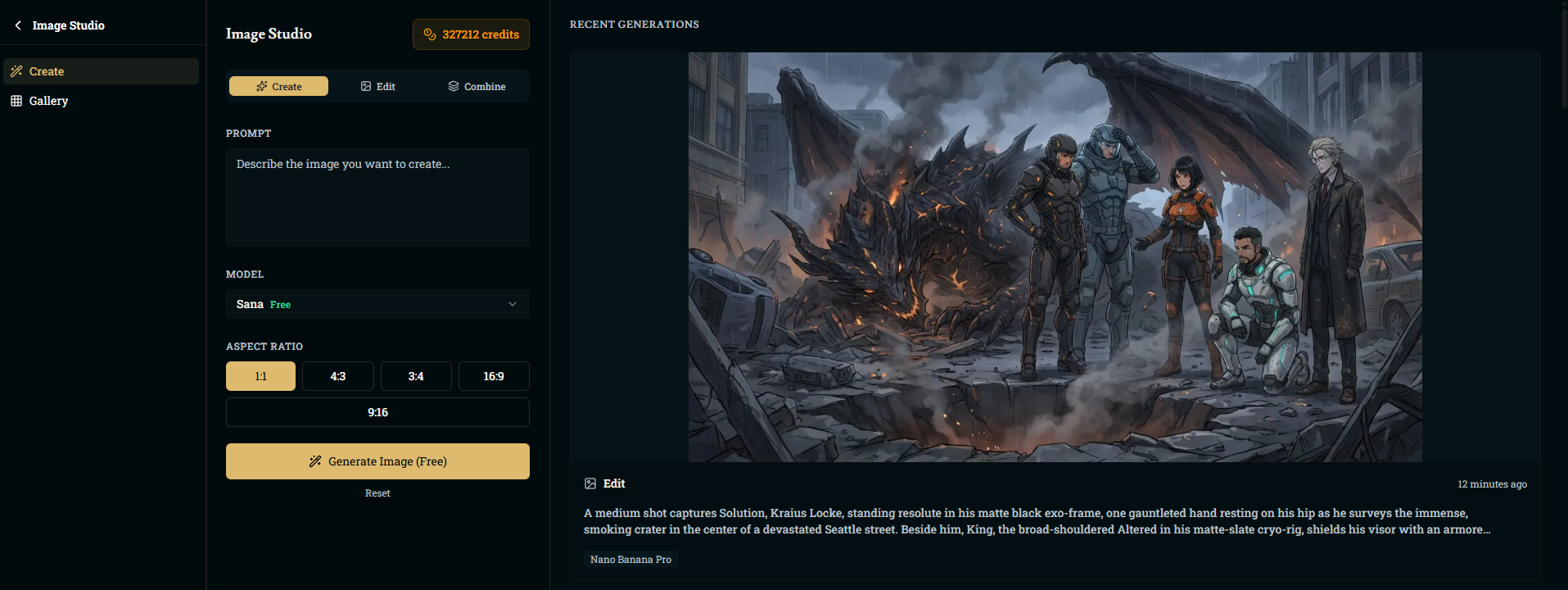
Open Image Studio from the main navigation.
Go to the Gallery tab.
You’ll see a grid of all your recent images, including:
In-world scene images
Other art you’ve created via Image Studio
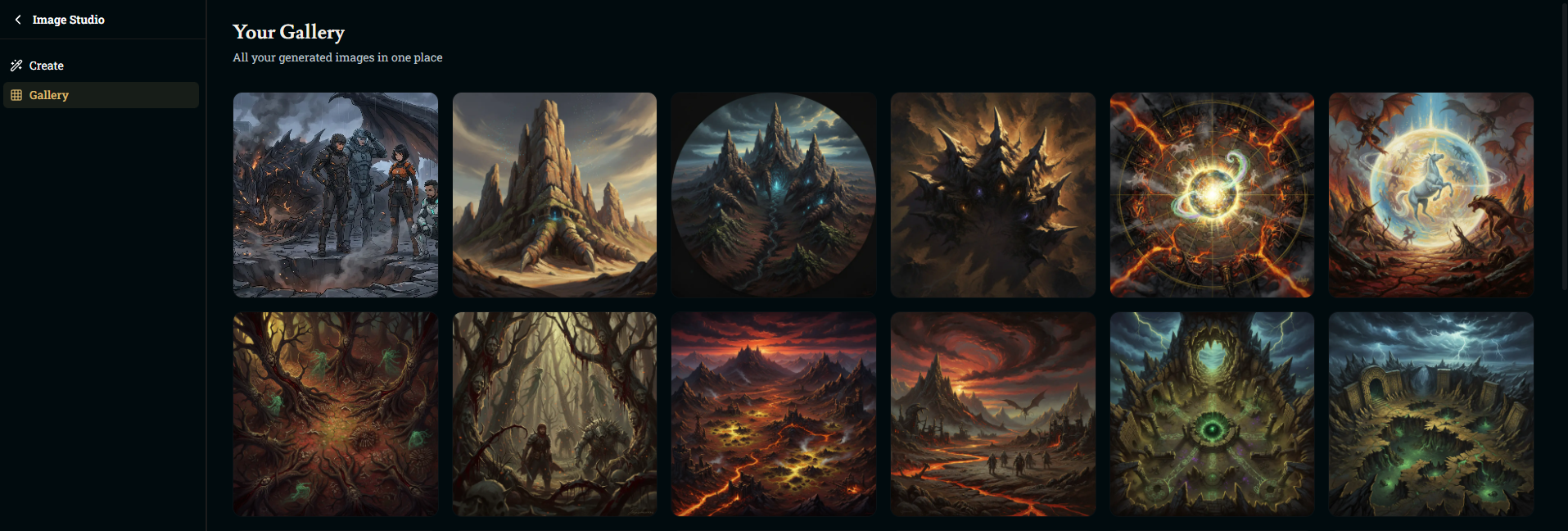
From the Gallery you can:
View images at full size
Download them for use in overlays, recap posts, or handouts
Delete anything you no longer want
Keep everything organized in one place for your campaign
Was this helpful?